Follow the steps below to enable the cookies needed for personalization of timeanddate.com
Internet Explorer 7.0
-
Click on the Tools popup-menu in Internet Explorer.

- Click on the Internet Options item in the menu - a new window opens.
-
Click on the Privacy tab near the top of the window.

- Click on the Sites button - another window opens.
-
Enter timeanddate.com in the text field and then click Allow. timeanddate.com will appear in the "Managed webistes" list below with a Setting of Allowed

- Save changes by clicking Ok in each window
Internet Explorer 6.0
- Click on the Tools-menu in Internet Explorer
- Click on the Internet Options item in the menu - a new window opens.
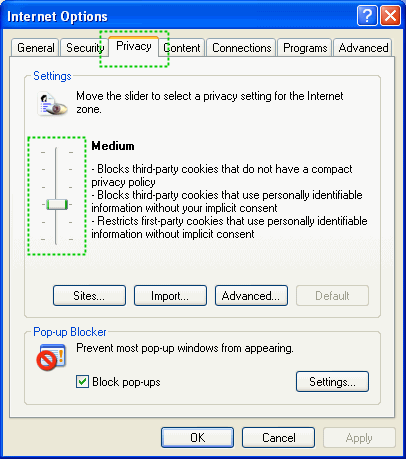
- Click on the Privacy tab near the top of the window. (See image below)
- Move the slider (See image) so that is on one of the levels below Medium High (including Medium, Low, Accept All Cookies
- Save changes by clicking Ok
Internet Explorer 5.0/5.5
- Click on the Tools-menu in Internet Explorer
- Click on the Internet Options item in the menu - a new window opens
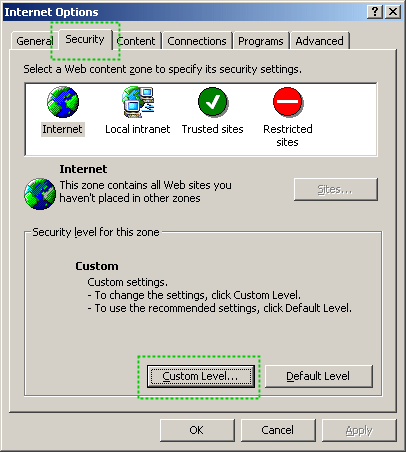
- Click on the Security tab near the top of the window. (See first image below)
- Click on the Custom Level... button near the bottom of the window (See first image below)
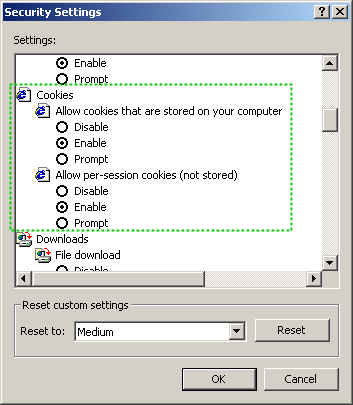
- Scroll down to Cookies in the new dialog, and set both "Allow cookies that are stored on your computer" and "Allow per-session cookies to Enable. (Second image below).
- Save changes by clicking Ok in each dialog